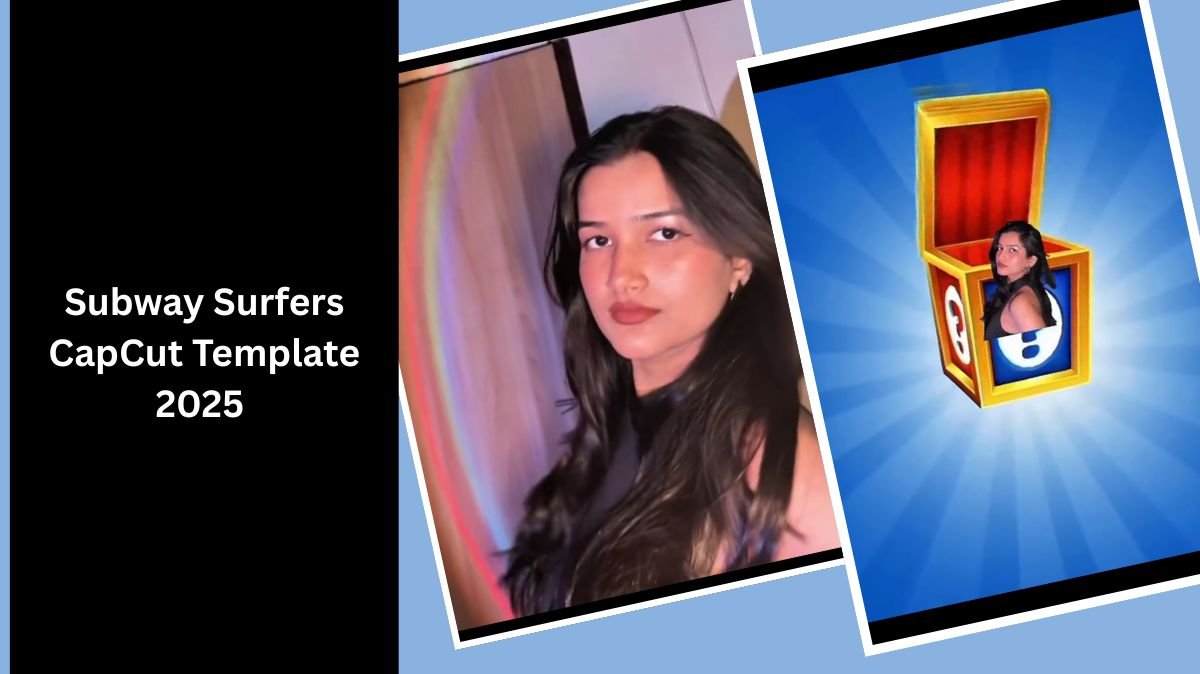
As once in a lifetime we all have played the Subway Surfers game on our mobile phones, and honestly, that game is so famous that almost everyone knows its vibe. Recently, you might have seen a lot of edits popping up on Instagram Reels, TikTok, and YouTube Shorts using the Subway Surfers CapCut template. These edits usually start with that signature mystery box pop-up, then suddenly the character image jumps out with a smooth transition, followed by that iconic shake effect matching the beat of the music. After that, the video is full of in-and-out zoom transitions that perfectly sync with sound effects and instantly grab people’s attention.
Because this trend is going crazy, a lot of people want to create their own versions of the Subway Surfers edit. So in this full article, we have provided everything, how you can use the template, how to add the right media, how to export it in good quality, and how to add extra colour grading and effects to make your video unique from all the other videos floating on social media.
Let’s get into it step-by-step.
Table of Contents
What You Need to Use the Subway Surfers CapCut Template
Before you even start creating the video, make sure you have the CapCut application installed on your device. You can download it easily from Play Store or App Store.
Once you have CapCut ready, the process becomes super simple and almost automatic.
How to Use Subway Surfers CapCut Template (Step-By-Step Guide)
1. Click on the “Use Template in CapCut” Button
First of all, simply click on the link that says Use Template in CapCut. This will redirect you directly inside the CapCut app, taking you to the exact Subway Surfers template used in all trending videos.
2. Add Your Media
Now here is the important part: you need to add your image or video. Make sure to use a PNG format for your picture, especially if you want that clean cut-out look like most popular edits. A PNG image gives that crisp, popping-out effect which matches the style of the template shown in viral videos.
Just tap on Add Media, select your PNG file, and CapCut will automatically adjust it to the template layout.
3. Export the Video
After adding your media, you don’t need to touch anything else if you want a quick export.
Just click on the Export icon on the top right corner. Select your preferred resolution, and your video is ready to share.
Optional: Manual Settings (Colour Grading & Advanced Editing)
If you think you want to do some extra manual settings—like adding colour grading, adjusting lighting, or making your video pop even more—then you can definitely customise it further.
Colour Grading Settings
To make your video look more aesthetic:
- Brightness: +5 to +10
- Contrast: +10
- Saturation: +15
- Temperature: -2
- Sharpen: +20
- Highlight: +5
- Shadow: -10
- Vignette: +5
- Hue: Slight shift toward blue or purple
Filters to Use
CapCut filters that work great with this template:
- Edge
- Vivid
- Cyberpunk
- Galaxy
- Blockbuster
These filters help match the energetic, colourful theme of Subway Surfers.
Shake & Motion Blur Settings
If you want the shake effect to hit harder on beats:
- Motion Blur: 40–60
- Shake Intensity: 20–30
- Speed Ramp: Add a slight 0.3 ramp at the drop
How to Make Your Video Unique (Stand Out from Others)
Since everyone is using the same template, the real challenge is making your version unique. Here are some tips:
1. Use Creative PNG Poses
Try different, stylish or funny poses for your picture. The more expressive the pose, the better the effect looks when it pops out of the mystery box.
2. Add Stickers & Text
Enhance your video with:
- “Level Up”
- “Unlocked Character”
- “New Update”
- Game icons like coins, hoverboards, or keys
3. Sync Everything With the Beat
People love edits that hit perfectly with the music. Use CapCut’s Beat Sync tool and mark beats manually for the best results.
4. Add Your Own SFX
Try including:
- Whoosh sounds
- Pop effects
- Shake-boom SFX
- Glitch sounds
These add originality to your clip.
5. Use Trendy Music
Pick background music that is currently trending on Instagram Reels or TikTok. The algorithm pushes trending sounds more often.
Tips to Attract More Audience to Your Subway Surfers Edit
1. Use Captivating Hooks
Start your video with text like:
- “Wait till the end”
- “Watch this insane transition”
- “New Subway Surfers Update?”
These instantly boost retention.
2. Keep the Video Short
Videos under 10 seconds perform better on social media. This template is perfect for that style.
3. Use Relevant Hashtags
Try using:
- #subwaysurfers
- #capcuttemplate
- #viralvideo
- #reelstrending
4. Upload in High Resolution
Always export in 1080p or 4K for best results.
Final Words
Creating a viral Subway Surfers edit is super easy with the CapCut template. Just add your PNG image, export the video, and if you want, take it to the next level with colour grading, beat sync, and custom effects. With the right creativity, your edit can stand out from thousands of videos and catch attention instantly on any platform.