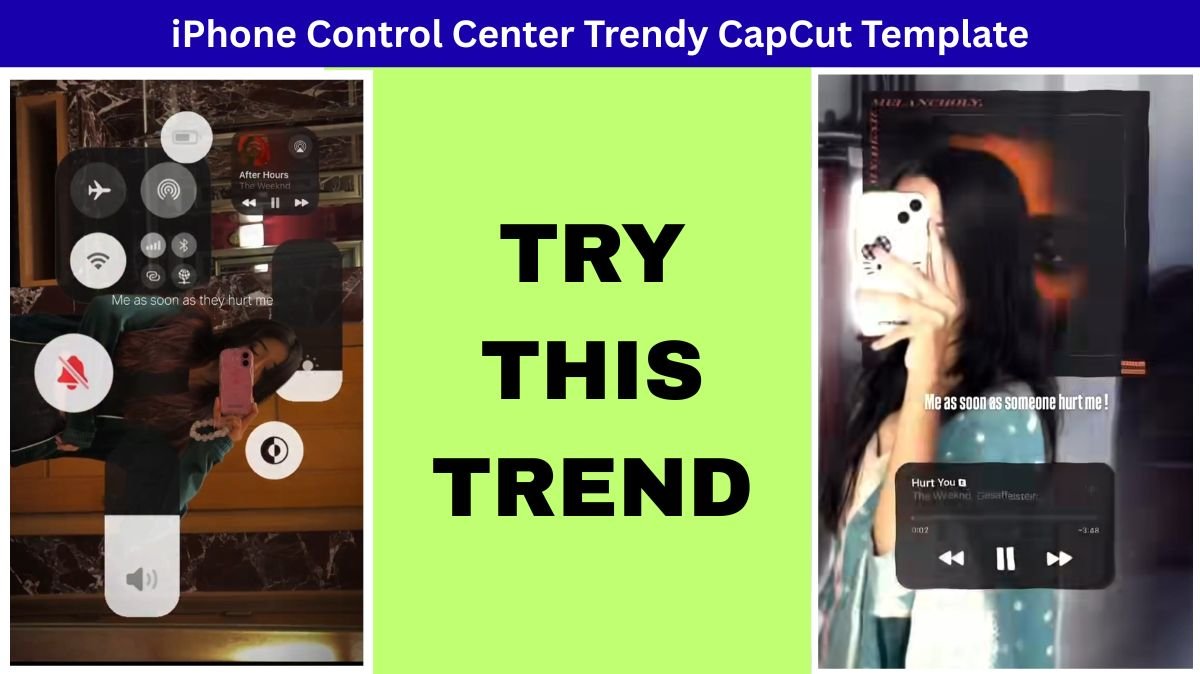
On social media, a lot of videos make their unique presence because of their unique edits, and recently, one edit is getting super viral everywhere. You must have seen that edit where, in the centre of the video, or there is a cut-out of a person, and around that cut-out, a Control Centre pops up.
It looks like someone is adjusting brightness and sound levels right over the person’s video, and after that, suddenly the scene switches to a super-fast sequence of multiple music tracks or beats. This whole thing is very catchy, and people are loving how creative it looks. Because of this, everyone is trying to recreate it using the trendy CapCut template that is blowing up right now.
So, after getting so many requests and after working hard to find the right template for our users, we decided to create this article to give you a full, detailed idea of how you can use this trending CapCut template and make the same viral-style reel yourself. The best part? You don’t need high-level editing skills. Even if you’re a beginner, you can make your video look professional with just a few taps.
Table of Contents
How to Use Music Control Centre Trendy CapCut Template

Step 1: Install CapCut on Your Device
To begin with, you need the CapCut application installed on your device. CapCut is available for both Android and iOS, and it’s free, which is one of the biggest reasons why so many creators use it for viral content. If you already have it, make sure it’s updated because new templates work best on the latest version.
Step 2: Click on “Use Template”
Once you have CapCut ready, all you have to do is click on the button titled “Use Template” for the specific trendy CapCut template. If you’re viewing this template from a link on social media or from our page, once you click “Use Template,” you will be redirected straight to the CapCut app. This is where the magic begins.
Step 3: Add Your Media
Inside the template interface, CapCut will ask you to add your media. This is the part where you choose the photo or video that will become your main focus. Most people choose a clear portrait because the trending part is the cut-out effect. Select the photo or video that you want to appear in the centre of the sound track Control Centre screen.
Step 4: Make Your Cut-Out
This viral look depends on a clean cut-out, and thankfully, CapCut makes it easy. After you add your media, click on Cut Out, and CapCut will automatically remove the background for you. If you picked a video, background removal still works because CapCut supports it for both photos and videos. The cleaner the cut-out, the more attractive your final video will look. Once it’s ready, fit it inside the template area.
Step 5: Export Your Video
Once you’ve added everything, simply hit the Export button. CapCut will automatically apply all animations, transitions, and effects according to the trendy CapCut template. Within a few seconds, your video will be ready to save or share directly on Instagram Reels, TikTok, YouTube Shorts, or wherever your audience is active.
How to Make Your Reel Look Different From the Viral Version
Now you must be thinking, “Everyone is using the same template… so how do I make MY reel stand out?” Going viral isn’t just about using the trendy CapCut template; it’s also about adding your own creative touches so the video feels personal and unique.
1. Have a Clear Concept
Before editing, decide what vibe or emotion you want to show in your reel. Do you want it to be emotional, funny, aesthetic, motivational, or cinematic? A clear concept helps viewers connect instantly.
2. Add Extra Clips
You can make your reel look more engaging by adding extra clips before or after the main template section. It could be a small introduction, a mini storyline, or a moment that leads up to the main transition.
3. Manual Editing for Extra Touch
Even though the template does most of the editing for you, adding your own touches, such as overlays, filters, or sound effects, can make the video feel personalised. You can adjust colours, add lens flares, or even include smooth, slow-motion scenes.
4. Choose the Right Music
Music plays a huge role in making a video go viral. Pick a trending song, a remix, or a beat-heavy track that matches the speed and energy of the template. Music and visuals together create the real impact.
5. Emotion Works Best
Reels that trigger emotions always perform better. Whether it’s nostalgia, laughter, aesthetics, or motivation, emotional connection can boost shares, saves, and reach. Think about what you want the viewer to feel when watching your reel.
Why the sound track Control Centre Trendy CapCut Template Is Viral
The reason this particular template is exploding on social media is simple: it has a modern, high-tech look combined with energetic music cuts and a visually strong centre cut-out. It looks professional but is super easy to make, which is why thousands of creators are jumping on this trend. People love videos that look complicated but only take a few taps to create.
Final Words
So this was the complete guide on how to use the trendy CapCut template, especially the sound track Control Centre version that is dominating social media right now. All you need to do is install CapCut, click “Use Template,” add your media, make your cut-out, and export. With just a little creativity, you can make your reel stand out from the rest, and who knows, your reel might be the next viral hit.