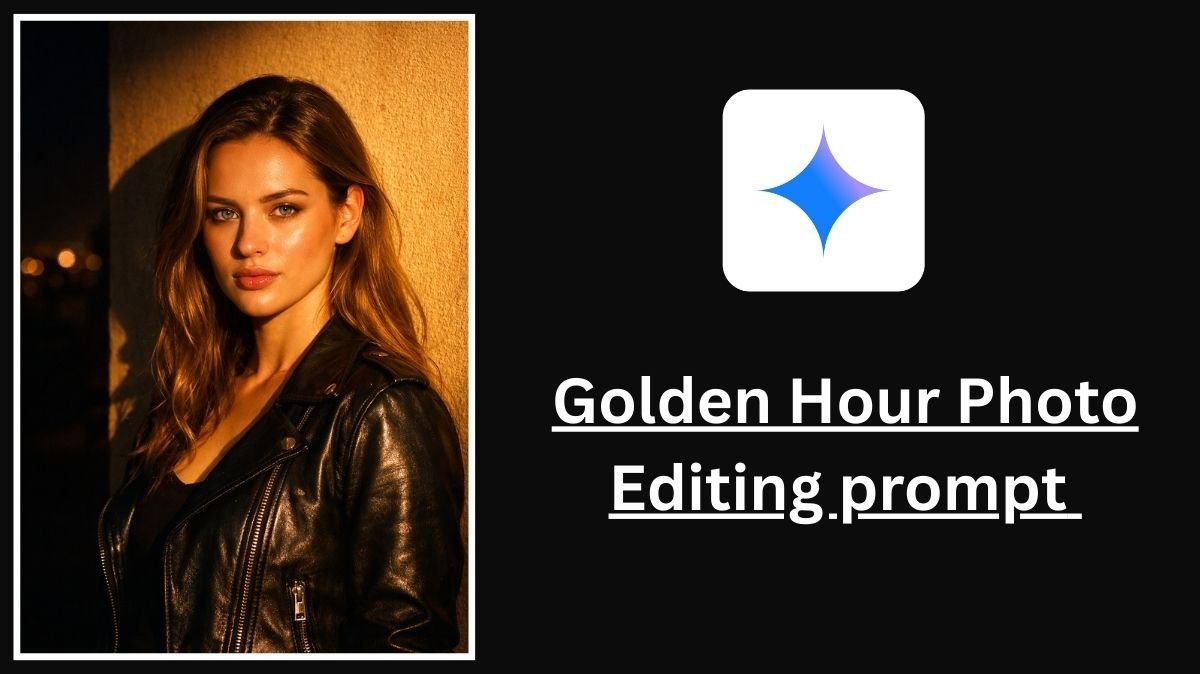
On social media, some new photo editing trends are rolling out, and one of the most popular trends right now is the Golden Hour photo effect. In this trend, people are taking their simple traditional photos and converting them into a golden, cinematic-looking image using Gemini AI by giving it a simple prompt.
This golden hour effect gives your image a warm glow, soft sunlight, and a premium aesthetic, which looks super cool and eye-catching. Many people are using this effect, but most of them don’t know the exact prompt or process behind it. That’s why we are here to explain step by step how you can create this trending image easily.
Table of Contents
What Is the Golden Hour Photo Editing Trend?
Golden hour is a photography style where the image looks like it was captured just after sunrise or before sunset. The light appears warm and golden, soft on skin tones, cinematic and aesthetic, and perfect for traditional, ethnic, and portrait photos.
Using Gemini AI, you can now generate this effect digitally without professional editing skills.
How to Use Golden Hour Prompt Editing in Gemini
To follow this trend, you don’t need any editing software. Just Gemini AI and a good prompt.
Step-by-Step Process
- Visit Gemini AI
- Upload your reference image (traditional or normal photo)
- Copy and paste the Golden Hour prompt
- Wait for a few seconds
- Gemini will generate your golden hour edited image
Golden Hour Photo Editing for Gemini (Copy & Paste)
You can use this sample prompt and modify it according to your needs:
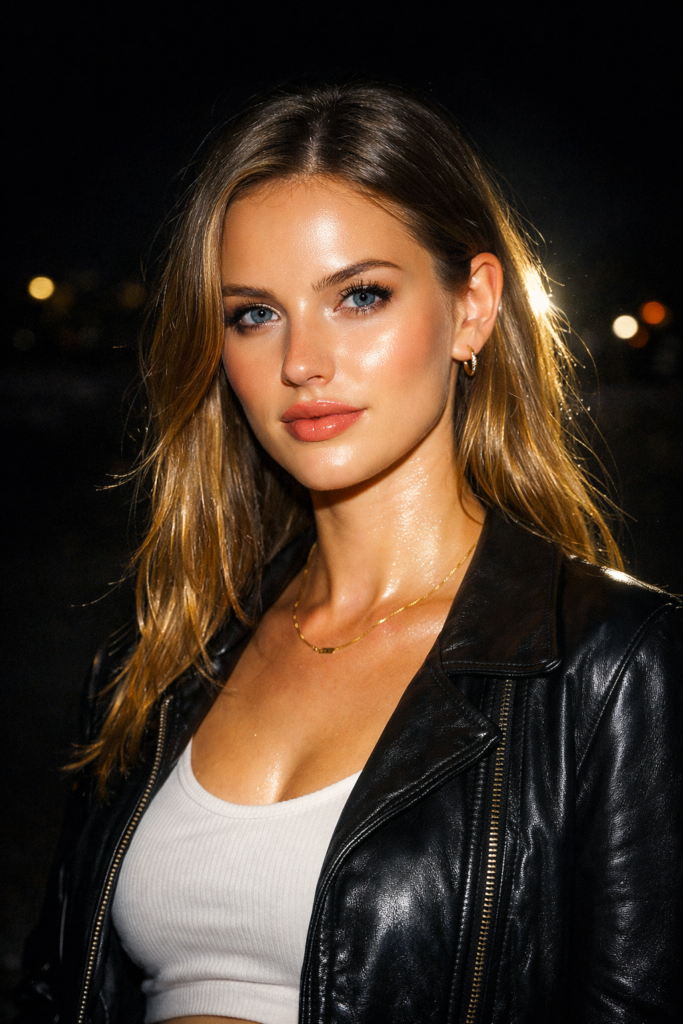
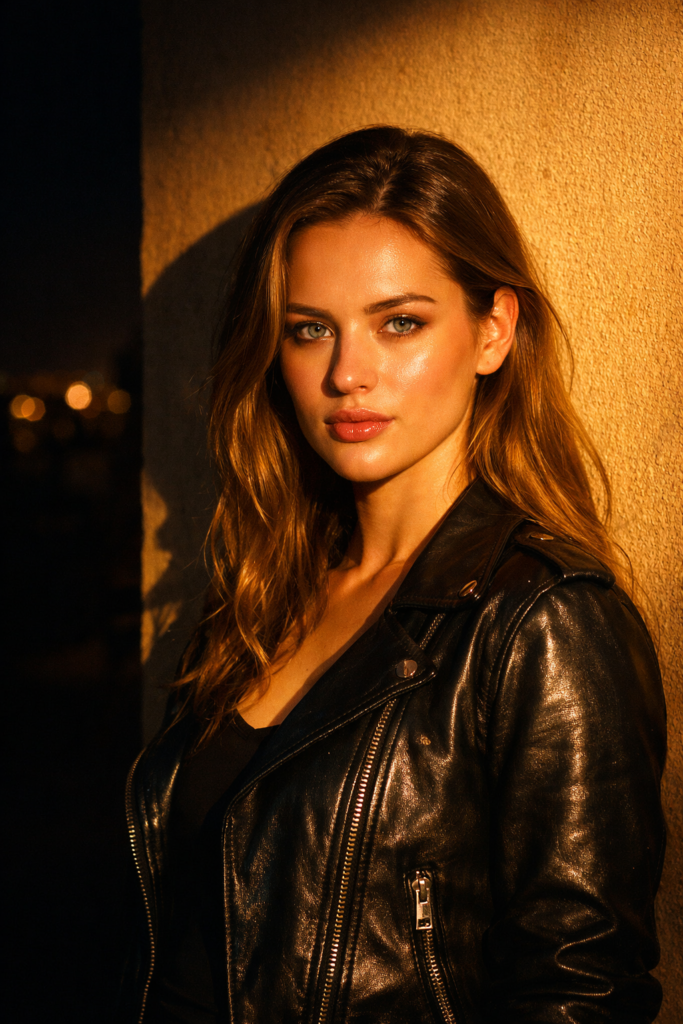
Prompts
- Cool moonlight + hard flash hybrid
Apply a dramatic night-flash portrait style to the uploaded photo while preserving every original detail, texture, and structure exactly as is — only modifying lighting, glow, and overall color temperature.
Keep the surrounding night environment pitch-black, mysterious, and completely unlit, with all original deep shadows, silhouettes, and darkness fully intact. Do not lift blacks or add ambient fill to the background.
Hit the subject with an intense, slightly cool-toned frontal flash, making the face and upper torso dramatically brighter than everything else in the frame.
Layer subtle ethereal moonlight rim-light along the hair, shoulders, and profile edges — very faint silver-blue highlights that barely kiss the skin.
Introduce crisp, almost specular flash catchlights in the eyes and strong glowing highlights across forehead, cheekbones, cupid’s bow, and chin, while letting deep cinematic shadows fall sharply away from the flash. Maintain razor-sharp separation between blown-out flash areas and pure black shadows for a high-contrast, fashion-editorial night mood. - Golden hour flash collision at night
Transform the uploaded photo into a bold nocturnal flash portrait while leaving every fine detail, skin texture, clothing fold, and background element completely unchanged except for lighting and color grade.
Preserve the deep, velvety darkness of the actual nighttime scene — no added ambient light, no brightened background, only very gentle enhancement of any existing tiny practical lights (street lamps, signs, stars) to feel realistic.
Illuminate the subject exclusively with a powerful, warm-golden direct frontal flash that falls off quickly, making the face, neck, and chest the only brightly lit areas in the image.
Add long, dramatic golden sunflare-style beams cutting across the subject from slightly above and to one side — creating molten glowing edges on cheekbones, jawline, nose, and strands of hair that look like stolen golden-hour light crashing into the middle of the night.
Keep ultra-high contrast: blindingly bright flash-lit skin against inky, detail-retaining shadows. Cinematic, editorial, high-fashion night vibe with warm-cold tension. - Harsh paparazzi-style flash + subtle cyan undertone
Restyle the uploaded photo with an aggressive night-time flash aesthetic, keeping 100% of the original details, micro-textures, edges, and shadows perfectly preserved — alterations allowed only to lighting, bloom, and color atmosphere.
Maintain absolute darkness in the night environment: no background lift, no added ambient glow, only minor intensification of any pre-existing small light sources to keep the realism of night.
Blast the subject with a very direct, slightly overpowering white-hot camera flash coming straight from the front, rendering the face and upper body extremely bright and almost overexposed while everything else stays near-black.
Add delicate cyan-tinted rim light and subtle cool specular highlights grazing the hair, ears, and side of the face — evoking street photography under sodium + flash mix.
Emphasize extreme contrast with blown-out flash skin tones against velvety deep shadows, sharp fall-off, visible flash hotspots on nose tip / forehead, and cinematic specular wrap-around glow on lips and cheek planes. - Cinematic crimson flash mood
Edit the uploaded photograph into a striking bold-flash night portrait, faithfully preserving every single original detail, skin pore, hair strand, fabric weave, and shadow structure — changes restricted purely to illumination, highlight bloom, and mood color.
Keep the nighttime background locked in deep, unlit darkness with rich blacks and all existing silhouettes/shadows untouched; only subtly boost any real tiny point-lights (car taillights, distant windows) for believable night realism.
Illuminate the subject with an intense, warm-to-blood-red frontal flash that dominates the face, neck, and shoulders, making them the single brightest and most saturated part of the entire image.
Introduce narrow, angled crimson-tinged light rays striking across the subject — creating glowing ruby highlights on prominent facial planes (cheekbones, brow ridge, lips, chin) while allowing dramatic inky shadows to carve the form.
Push extreme cinematic contrast: saturated flash skin against pure shadow voids, visible specular flash reflections in eyes, and a moody, almost thriller-like red-accented night atmosphere.
How to Make Your Image Unique from Trending Images
Since many people are using the same golden hour effect, you must add manual customizations to stand out.
Manual Settings You Can Add to Your Prompt
You can enhance your photo by adding details like camera style (DSLR, iPhone, cinematic lens), mood (soft, dreamy, dramatic, romantic), background elements (sun flare, trees, sky gradient), outfit highlight (enhance traditional dress colors), and color tone (warm orange, soft yellow, sunset pink).
Example Custom Prompt Add-On
“Use soft cinematic golden hour lighting with a warm sunset tone, enhanced traditional outfit colors, smooth skin texture, natural shadows, and a professional portrait look.”
Additional Tips to Follow This Trend Successfully
Use traditional outfits like saree, kurta, lehenga, or ethnic wear
Avoid cluttered backgrounds in the original image
Try different angles and poses for uniqueness
Add emotion such as smile, calm expression, or side pose
Experiment with different golden tones instead of copying the same style
How to Build a Unique Presence on Social Media with This Trend
To create a strong presence on social media, don’t copy exact prompts—customize them. Maintain a consistent aesthetic on your profile, post before the trend becomes overused, and use trending hashtags like #GoldenHourEffect, #GeminiAI, #AIPhotoEditing, and #TrendingReels. You can also share behind-the-scenes or prompt tips to increase engagement.
Final Words
The Golden Hour AI photo editing trend using Gemini is one of the easiest and most powerful ways to upgrade your images without professional tools. By using the right prompt and adding your own creativity, you can create unique, eye-catching photos that stand out on social media.