Today, the internet is filled with AI-generated photos. Wherever you look, on Instagram, YouTube Shorts, TikTok, or Pinterest, you will see highly professional, cinematic-looking AI images that feel like they were shot using expensive cameras and edited by expert designers. Many creators are using different types of AI prompts to generate these images, but the biggest problem is that most people do not know which prompt was used in viral images.
Because of this, beginners often feel confused. They try random prompts, but the output does not look anywhere close to those viral cinematic photos. That is exactly why this article is created. In this guide, we will explain everything about AI photo editing prompts in a simple, human tone and also provide useful prompts that you can use for free in Gemini.
If you follow this article properly, you will be able to create stunning AI images without any paid tools or advanced editing skills.
What Are Ai Photo Editing Prompts and Why Are They Important?
An AI photo prompt is simply a detailed instruction that tells the AI how the image should look. The better and more descriptive your prompt is, the better output you will get. Viral AI images usually use long, well-structured prompts that include details like:
- Lighting style
- Camera angle
- Background depth
- Facial details
- Mood and emotion
- Color grading
- Cinematic effects
Most people fail because they use very short prompts like “make this photo cinematic,” which is not enough for AI to understand what you want.
How to Use AI Photo Editing Prompts in Gemini
Using Gemini for AI photo editing is very easy. You just need to follow a few simple steps.
Step 1: Visit Gemini
First of all, open Gemini in your browser or app. Log in using your Gmail ID.
Step 2: Upload Your Reference Image
After logging in, upload the photo you want to enhance or transform. This can be a selfie, portrait, or any normal image.
Step 3: Copy the Prompt
Now, copy the AI prompt provided in this article (or any prompt you like).
Step 4: Paste Prompt into Gemini
Paste the prompt into Gemini along with your uploaded image.
Step 5: Submit and Generate
Click on submit. Within a few seconds, Gemini will generate a professional AI image for you.
That’s it. No complex editing, no software skills required.
Best Ai Prompts
Hanuman photo editing prompt
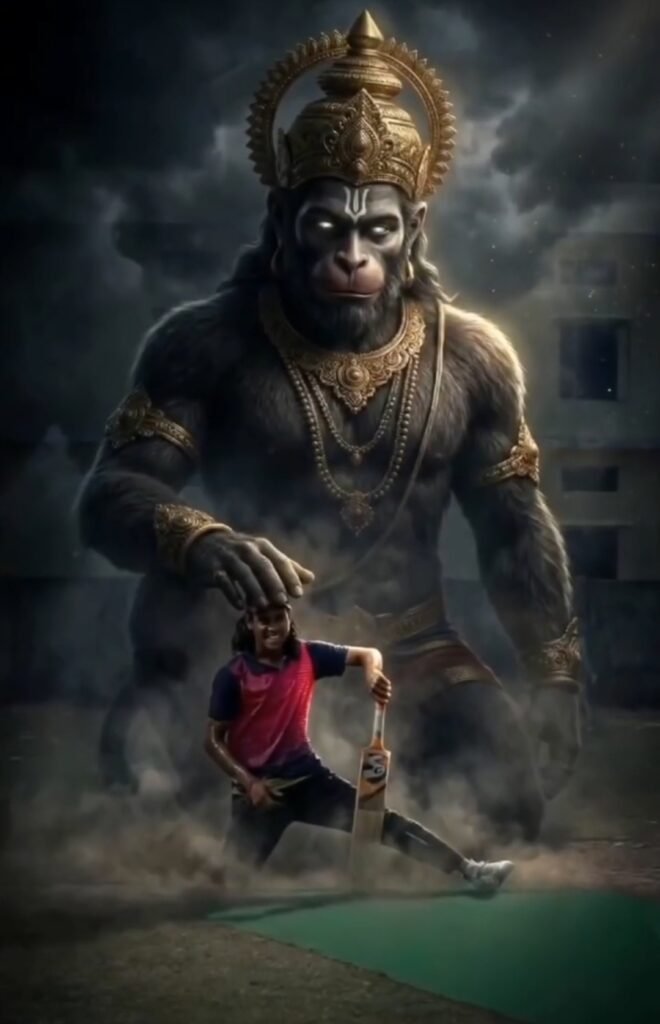
Ultra-realistic cinematic digital art of Lord Hanuman (Bajrangbali) standing behind me doing a heavy deadlift, Hanuman blessing him by gently placing one hand on his head and making a full photo. Lord Hanuman is tall, muscular, divine, with grey stone-like skin, wearing a golden crown (mukut), ornaments, and a dhoti, with a glowing golden aura and halo around his head, and powerful spiritual energy. Modern gym interior, barbell loaded with heavy plates, wooden lifting platform, dramatic lighting. Epic devotional + fitness fusion, dust particles, smoky atmosphere, golden sparks floating in air. Hyper-detailed muscles, realistic skin texture, sweat on the athlete, and sharp focus. Cinematic composition, low-angle shot, 8K ultra HD, high contrast, volumetric lighting, godly glow, masterpiece, unreal engine, ultra-realistic fantasy realism. And same to same, no change in body.
Prompt: 1
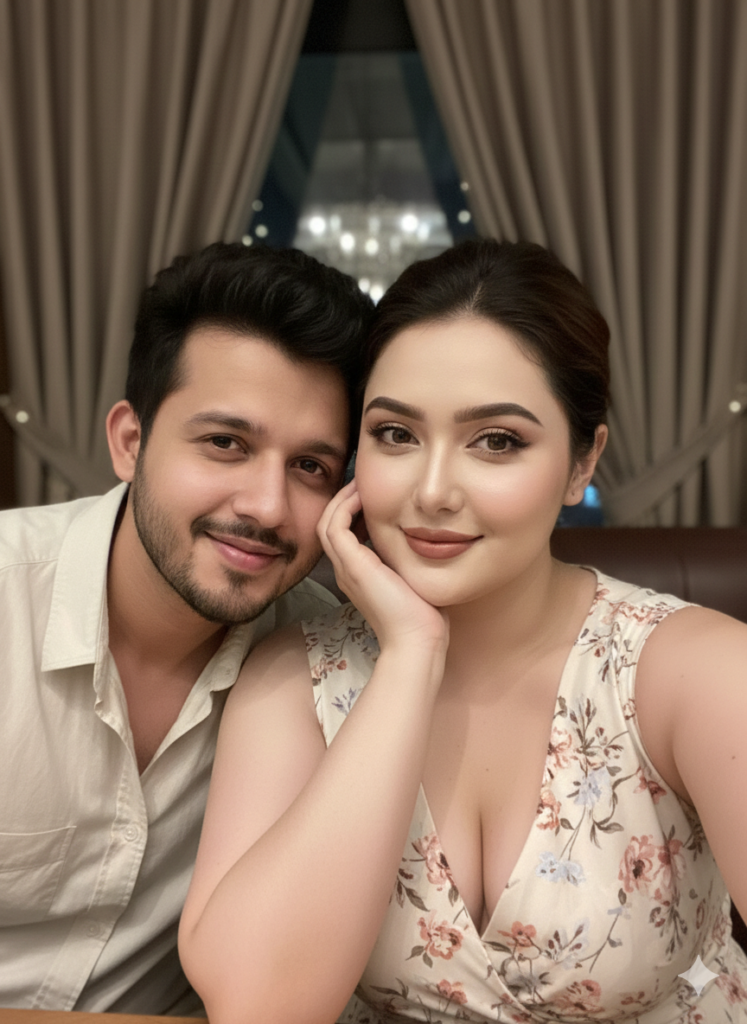
Candid indoor close-up couple selfie, cozy restaurant/bar setting, soft ambient light with gentle flash. Girl in the foreground resting her cheek on one hand, wearing a light floral sleeveless dress, soft blush, and glossy lips, relaxed smile. Boy leaning in from the left, casual shirt, warm friendly expression. Curtains and dim lights in the background, natural skin texture, smartphone front-camera selfie feel, real candid vibe.[LOCK-EXACT | same pose, same framing, same angle, same lighting, same expressions, zero variation]Ultra HD 8K, Ratio 9:16, keep my face 100% same as in the reference image. Generate
Why Viral AI Images Look So Professional
Viral AI photos are not created using magic. They follow a simple formula:
- High-quality reference image
- Long and descriptive prompt
- Proper lighting and camera details
- Cinematic color grading keywords
- Realistic texture instructions
Once you understand this structure, you can easily recreate viral-style images on your own.
How to Further Enhance Your AI Images
Even after generating an AI image, you can improve the final result by applying a few extra techniques.
1. Improve Prompt Details
Always add specific words like:
- “cinematic lighting”
- “soft rim light”
- “film grain”
- “HDR look”
- “natural skin tones”
Small details make a huge difference.
2. Use Style References
Mention styles such as:
- Hollywood portrait style
- Fashion editorial look
- Movie poster aesthetic
- Dark cinematic tone
This helps the AI follow a clear artistic direction.
3. Adjust Mood and Emotion
You can enhance realism by adding emotions like:
- Calm expression
- Serious cinematic mood
- Confident look
- Soft smile with dramatic tone
4. Upscale and Sharpen
After generating the image, you can use free AI upscaling tools to increase resolution and sharpness for social media or thumbnails.
Common Mistakes to Avoid
- Using very short prompts
- Uploading low-quality images
- Forgetting lighting and camera details
- Expecting perfect results on the first try
Always experiment and tweak your prompt slightly for better results.
Final Thoughts
AI photo editing is becoming extremely popular, and Gemini makes it even easier for beginners to create professional and cinematic images for free. You don’t need to know the exact viral prompt—once you understand how prompts work, you can create even better images on your own.
Use the prompts shared in this article, experiment with different styles, and keep improving your prompt structure. With practice, your AI images will look just as cinematic and professional as the viral ones you see online.